Grab a Cup of Mocha.js to go with your React.js Application
Effectively develop test cases using the Mocha.js library to test web applications.

Abdullah Muhammad
Published on March 24, 2024 • 7 min read

Introduction
So far, we have explored developing and deploying web applications using various technologies.
Whether it is using Vanilla JavaScript/React.js for developing a website or incorporating AWS services for deploying web applications, suffice to say, we have looked at each aspect in great detail.
But what about testing? We have not explored testing in the development of web applications. You can say we skipped a very crucial step of the SDLC (Software Development Life Cycle).
Today, we will explore testing and incorporate a handy library that allows developers to test web applications.
Mocha.js is a standard testing framework for JavaScript applications and supports key testing features such as assertions, test coverage, and even browser support.
Types of Software Testing
If you are familiar with testing and quality assurance, you likely know of the different ways of testing applications. The following is a list of the different types of testing:
- Acceptance Testing — Testing an application to determine if it meets the minimum requirements for deployment purposes
- Unit Testing — As the name implies, testing units of code within an application separated from core functionality
- System Testing — Testing the entire application to ensure it functions as intended and fulfills all requirements
- Stress Testing — Testing an application to check behavior under extreme pressure. An example can be to ensure an application has maximal uptime during periods of high demand
- Integration Testing — As components are added to an application, integration testing ensures that the addition of new units work as intended
- Load Testing — Testing an application to check behavior under different types of load
- Compatibility Testing — Testing an application to ensure it performs as intended across different platforms, environments, devices, and so on
- Regression Testing — Testing a previously developed application to ensure it performs correctly after a change is made
- Performance Testing — Testing the capability of an application in terms of speed, accuracy, and uptime
- Usability Testing — Testing an application to ensure it is user-friendly and works as intended for its scope of users
- Security Testing — Testing an application to ensure it is safe and secure to use. This type of testing is also done to help identify any loopholes or vulnerabilities that can be exploited
We will not dive into each of these methods of testing as that is beyond the scope of this article. Each type of testing method would have its own dedicated article as each is expansive in their own right.
However, it is always good to know the different types of testing methods that exist, what they are intended for, and when to use them.
Code Overview
As stated earlier, we will be focusing on utilizing the Mocha.js JavaScript framework for testing a React.js application. Mocha.js makes asynchronous testing easy to implement.
We incorporate other libraries such as Chai as well as Enzyme to accomplish testing. Chai is simply a Behaviour-Driven Development/Test-Driven Development assertion library.
If you have worked with testing before, you are familiar with assertions (making sure certain things equate to certain values to pass a given test).
Enzyme is a library that makes testing React components easy. Both Chai and Enzyme can be used in conjunction with Mocha.js to test React.js applications.
You can follow along by cloning this repository. The directory of concern is /demos/Demo39_MochaJS_Testing. All the code, including testing, resides in the frontend directory.
We have a React application which contains App, Navbar, HomePage, and SearchPage components all of which reside in /src/Components.
Feel free to explore these components if you like, but that is not the scope of this tutorial. The main focus will be on the test directory located in /frontend.
Running a basic test in Mocha.js is very easy. We can make use of some built-in functions that assist with testing. One such function is the describe function.
As the name implies, this function details what a set of test cases are testing. The describe function takes in a string argument as well as a call back function which contains a set(s) of test cases.
An individual test case is constructed using the it function. The it function takes in two arguments just like the describe function. A string that describes the particular test case and a call back function which details the testing.
Simply put, use the it function when describing one test case and use the describe function when testing a set of closely related test cases.
We will explore each of these functions in detail in this section.
As mentioned earlier, there are four components in the React application.
The following is the test code for the HomePage component /test/HomePage.test.tsx:
As you can see, we make use of the Enzyme library to create a test HomePage component with which we work with using the shallow function. We import the component from the front-end directory and make use of the describe and it functions from the Mocha.js library.
We create a test suite which contains two individual test cases for validating the features of the HomePage component. We make assertions to determine if a test case should pass or fail using the Chai library.
Similarly, we have the test code for the Navbar component /test/Navbar.test.tsx:
Testing the Navbar component is exactly the same. We check to see its visibility and features related to it (check to see if titles and links exist).
Finally, we test the SearchPage component. The test code for testing the SearchPage component can be found here /test/SearchPage.test.tsx:
We validate the SearchPage component by making sure we can find the relevant features related to it such as the title, paragraph text, form, input element, and the submit button element.
We use the Chai library to make assertions to determine if a specific test case should pass or fail.
Demo Time!
The demo will be short and sweet as we will simply run all the test cases to ensure they successfully pass.
In the package.json file, located in /frontend, you will find the following command added to the scripts section:
test: "mocha"This allows us to run npm test in the console to invoke the Mocha.js testing library.
Mocha.js will specifically look for the test directory and run through all the code in the test files located under this directory.
Assuming all goes well, you should see the following outputs related to each of the three different components tested:
HomePage component test output:

Navbar component test output:

SearchPage component test output:
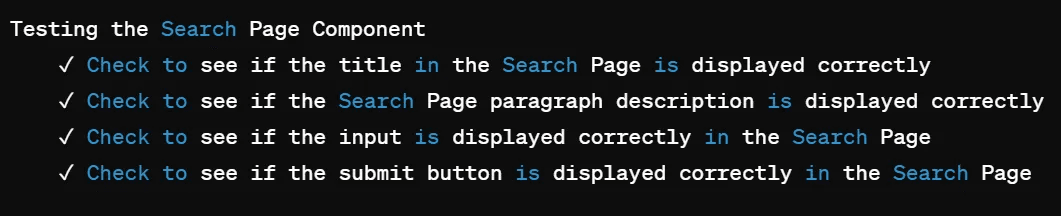
In total, we are testing three different React components each having their own test suites.
Three test suites with each containing multiple test cases to test their respective components. In total, there are eight different test cases across the three different test suites.
You can see if a test case passed or failed designated by the checkmark beside the test case description. Test case descriptions match what is provided in each of the it functions.
Each test suite description matches what is provided in each of the describe functions.
Conclusion
In all, we explored the Mocha.js library. A convenient JavaScript testing framework which makes asynchronous testing easy for developers. We covered different types of testing and what they are used for.
We looked at utilizing the Mocha.js library along with Chai and Enzyme to seamlessly test a React application.
There is a lot more you can do with Mocha.js, but this tutorial gives you a strong foundation on which you can build your testing knowledge.
Linked below are the GitHub repository used for this tutorial, the Mocha.js testing library, and the Chai, Enzyme libraries:
As always, I hope you found this tutorial helpful and look forward to more in the future.
Thank you!
Related Articles

Quick Look at Publishing Packages to the NPM Registry
Learn how to rapidly develop and publish NPM packages to the NPM registry.
Top 5 React Libraries for Web Development in 2025
As a developer in 2025, learn of the top five libraries you must know for modern web development.

Comprehensive Guide to Next.js 15 App Router
Learn everything about Next.js 15 App Router and utilize it to develop full-stack web applications.

The AWS EC2 Single-Tier Architecture Pattern
Understand the single-tier AWS EC2 architecture pattern and utilize it to build a full-stack web application.

AG Grid Products for Rapid Front-End Development
Learn about AG Grid and its various product offerings for effectively creating interactive charts.